Pages

Pages - Menu

15.8.11

LoadPerf Event Windows 7

The performance counter name string value in the registry is incorrectly formatted.The bogus string is 11766,the bogus index value is the first DWORD in Data section while the last valid index values are the second and third DWORD in data section.

Source : LoadPerf
Event id : 3001
Platform : windows xp
file name : loadperf.dll
Error codes : 0000: 00002df6 00002df4 00002df5 00000297
Note: For the bogus string 1848, the event data codes are 0000: 00000738 00000736 00000737 00000297.
Solution :
All performance counter names and explain text are maintained in string tables managed by the performance counter subsystem (PerfLib).The current contents of tre performance counter string tables are corrupted and cannot be displayed.To fix the problem rebuild the string tables.

Rebuilding string tables :
To rebuild the string table use the command Lodctr /r.As a result the contents of the string tables are automatically rebuilt.
Note : The error may also represented as 'LDPRFMSG_REGISTRY_COUNTER_STRINGS_CORRUPT'

Event 3006, LoadPerf :
Unable to read the performance counter strings defined for the 009 language ID. The first DWORD in the data section contains the win32 error code

LOG NAME : application
event id : 3006
OpCode : info
symbolic name : LDPRFMSG_UNABLE_READ_COUNTER STRINGS

Solution :
Rebuild the list of available counters by using the command 'lodctr /r'.For more refer http://technet.microsoft.com/en-us/library/dd315735(WS.10).aspx...

14.8.11

Fix NetBT error event id 4321

Error Description :
The name "< computer name >:0" could not be registered on the interface with ip address 192.168.1.4.The machine with the ip address did not allow the name to be claimed by this machine.


Error codes :
0000: 00000000, 00560004, 00000000, c00010e1.
0010: 00000106, c0000001, 00000003, 00000000.
0020: 00000000 00000000


Additional details:
Source: NetBT
Event id : 4321
File name : netevent.dll
Proof:
fix netbt error reported on event viewer window
Solution : 
The computer was failed to contact WINS (windows internet name service server)  to register its name.Here, NetBT is responsible for sending name service related packets such as name queries and name registrations to WINS.

Note : To view/locate WINS settings do the following ,

  • Under Network Connections select the network and view its properties.Then double click the TCP/IPv4.Now,under general tab select advanced TCP/IP settings option,where we can find WINS settings.


For more about NetBt and WINS refer,
http://support.microsoft.com/kb/822659.
http://support.microsoft.com/kb/120642.
note : Use the command 'nbtstat' to view the name table.


Recommended:
event id 4307 NetBT

13.8.11

Fix Error code 2048 quicktime player

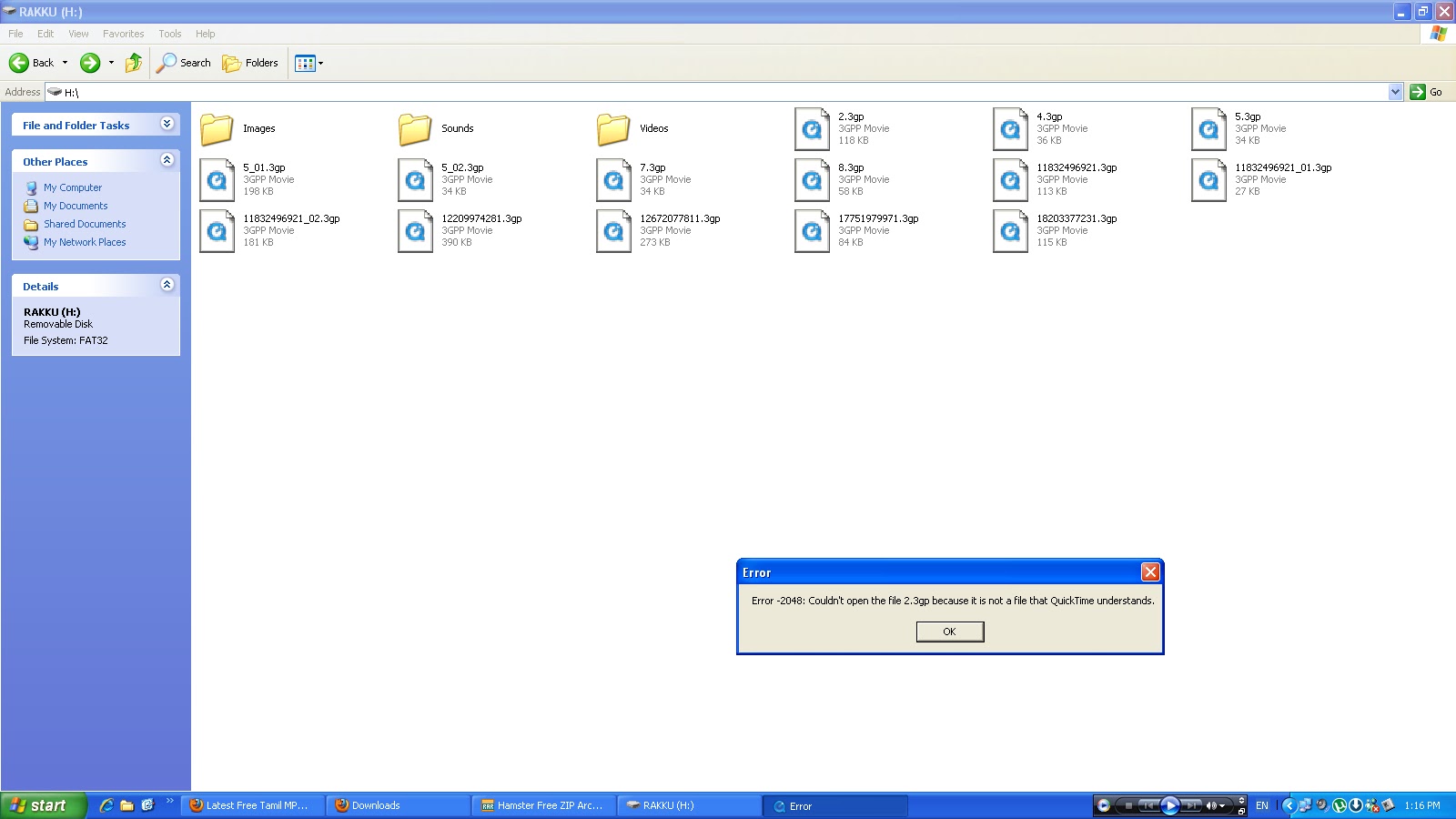
When i try to open the file having .3gp extension with quicktime player i received an error as,:Error -2048: Couldn't open the file <file name><file format(.3gp)> because it is not a file that quick time understands".
Note : This error can appear on windows 7/ xp..
Error proof :
how to fix couldn't open file error quicktime -error code 2048
solution :
  • ensure whether the file is corrupted or not,if it is corrupted then just replace the file.
  • try open the file with other programs which are supporting the file extension.
  • if it is a quick time player issue then check for codecs and install it.

12.8.11

How memory affects usb device

Sometimes when you plug in the usb pendrive into the computer's port and keep searching for its drive location, you may not able to view the device from the 'mycomputer'.And at the time a notification icon stated with error message like your 'device is malfunctioned' or 'device is not working' may appear just over the windows notification area.This is the problem which can be sometimes recoverable.Here i show you how to recover your valuable datas from such type of problems.

The error of 'unknown device' may appear,if the device has no memory or there is no free space available to store any more datas (user have used full memory of the pendrive).So for resolving this situation the user have to restart the system and search your usb drive onceagain,it is visible.

Recommended :
support for media ejection lock

10.8.11

solve hamster errors

While i try to open one of a free tool namely hamster video converter i received an error messages as listed below.
An error has occurred during program execution.
Exception Type : EInvalidXML / EAssertion Failed
Message : Cannot find filter description./ Options not found.
Module name : HamsterVideoConverter.exe
platform : windows.
Recommended :
Access Violation Read of address error

BootClean error log (Error 0xc0000034)

Boot time removal tool started.

Error 0xc0000034 deleting regvalue \Registry\Machine\SOFTWARE\MICROSOFT\WINDOWS NT\CURRENTVERSION\WINLOGON.

Error 0xc0000034 opening (\??\C:\Documents and Settings\USER\fswagz.exe) for reparse check.

Unable to strip attributes from \??\C:\Documents and Settings\USER\fswagz.exe with error 0xc0000034.

Error 0xc0000034 removing: \??\C:\Documents and Settings\USER\fswagz.exe
BTR Completed Successfully.


Recommended :
solve compressed Boot manager problem

7.8.11

Event 14 /36 Volsnap

Error Description : The shadow copy of volume C: was aborted because of an IO failure.
Event id : 14.
Source : VolSnap
file name : volsnap.sys
Error codes :

0000: 00000000 00580002 00000000 c006000e
0010: 00000002 c000009c 00000001 00000000
0020: 00000000 00000000


Volsnap Error With Event id : 36
The shadow copies of volume C: were aborted because the shadow copy storage could not grow due to a user imposed limit.
Log name : system
source : volsnap
keywords : classic
Solution : Increase the maximum amount of storage space that is available for shadow copies of the volume.For troubleshooting refer the post Diff Area Integrity from http://technet.microsoft.com/en-us/library/dd364636(WS.10).aspx.

Event 16, volsnap:
The shadow copies of volume were aborted because volume, which contains shadow copy storage for this shadow copy, was force dismounted.
proof:
volsnap event 16 windows 7

Recommended : 
solve volume shadow copy problems

5.8.11

windows sdk installation failed for windows xp and .net framework 4

Windows SDK (Software development kit) enables developer to create application and other essential IT supported features like windows troubleshooting platform (WTP) that can run on microsoft windows operating systems of different versions like windows 7/xp/vista etc.
To install windows sdk the system should need to have .net framework previously installed.Lets see what are error reports received while the windows sdk installation takes place on windows xp/ 7 operating systems.


Commonly occuring errors windows sdk installation:
Installation failed 
A problem occurred while installing selected windows SDK components.
  • 'Installation of the "Microsoft .Net framework Reference Assemblies" product has reported the following error: Signature of the file netfx_dtp.cap could not be obtained.Possible unsigned file'.
  •  Setup could not find the file WinSDKTools\WinSDKTools_x86.msi at any of the specified source locations.
SDKSetup_7.0.6918.0.log holds following error report :
  • SchedNetFx:  Error 0x80070003: failed to call FindFirstFileW with string C:\WINDOWS\Microsoft.NET\Framework64\*
  • SchedNetFx:  Error 0x80070003: failed to search for ngen under path C:\WINDOWS\Microsoft.NET\Framework64\
  • SchedNetFx:  Failed to find 64bit ngen. No actions will be scheduled to create native images for 64bit.
  •  Failed to download the file http://download.microsoft.com/download/A/6/A/A6AC035D-DA3F-4F0C-ADA4-37C8E5D34E3D/setup\MTPack\netfx_dtp.cab. Error - An exception occurred during a WebClient request.
  • [SDKSetup:Error] Config_Products_Install: Installation of Product Microsoft .Net Framework Reference Assemblies (failed): Signature of the file netfx_dtp.cab could not be obtained. Possible unsigned file. Stack:    at SDKSetup.Utility.VerifyFileSignature(String LocalFile, Boolean QuietNoUI)   at SDKSetup.Product.CheckCABSignatures() at SDKSetup.Product.ProcessDownloadedFiles() at SDKSetup.Product.WaitForDownloadToComplete(ManualResetEvent cancelEvent) at SDKSetup.Product.ConfigureNewProduct(ManualResetEvent CancelEvent)
  •  [SDKSetup:Error] Config_Products_Install: Windows SDK Setup (failed): Installation of the "Microsoft .Net Framework Reference Assemblies" product has reported the following error: Signature of the file netfx_dtp.cab could not be obtained. Possible unsigned file. Stack:    at SDKSetup.Product.ConfigureNewProduct(ManualResetEvent CancelEvent) at SDKSetup.Product.SetupProduct(TaskMode taskMode, ManualResetEvent CancelEvent) at SDKSetup.ProductCollection.SetupProducts(TaskMode taskMode, DownloadManager downloadManager, ManualResetEvent cancelEvent) at SDKSetup.ConfigProducts.DoCurrentTask(TaskMode Task).
windows sdk installation failed for windows xp and .net framework 4

Windows Delayed Write Failed

While attempting to save files from windows xp installed computer to memory card,i  received an error message and also at that time system was hanged for a while.

Error message :
Windows - Delayed Write Failed
'Windows was unable to save all the data for the file <drive location-Here external drive>.The data has been lost.This error may be caused by a failure of your computer hardware or network connection.Please try to save this file elsewhere'.

Note : After short a while i received taskbar error ' Unable to create task bar icon after 5seconds'.Is it related to delayed write error.
Solution recommended is to reinsert the external drive<here its memory card> and try saving the files.
delayed write failed windows xp
Platform : windows xp operating system service pack 3(SP3).

Settings/configuration for UDMA(ultra direct memory access) and 'Enable write caching on disk' should be carefully viewed to overcome this error.
By increasing the number of page table entries we can avoid this error.To increase the number of page table entries open regedit and assign following settings for the key.
HKEY_LOCAL_MACHINE/System/CurrentControlSet/control/session manager/memory management
  •  In the details pane,right click the system pages value and then click modify.Note: default value is 0(hex).
  • In the value data box,type 7FFF and click ok.we can try following alternate values 7FFF=32,000;PTEs BFFF=50,000;PTEs 24FFF=150,000 PTEs.Note: The FFFFFFFF value should not be used.If you set it too high,you might run out of paged pool memory. 
  • Exit registry
  • restart
  • monitor the memory /free system page table entries in perfmon.
Note:For xp installed systems this error can be solved
from the following page,
http://support.microsoft.com/kb/330174.


Note: This error occurs, if user have removed the device before the process (write) takes place.
Recommended :
error copying files incorrect parameter

4.8.11

net error 6 file not found chrome

While i try to access windows SDK from chrome browser i received an error message as 'Error 6 (net::ERR_FILE_NOT_FOUND) The file or directory could not found'.

The above error indicate that the file is not found or moved to another location.Such net errors are only displayed on chrome browser. When i try to access the same file with mozilla i got just an error message without displaying the code.
Platform : windows operating system.
net error 6 chrome file not found

The parameter is incorrect

While installing update or at the time of copying files,the user may face an error like 'incorrect parameter'.Here i posted an error,what i faced wile copying files from system to 8gb memory card with help of card reader.
Error copying file or folder
Cannot copy <file name>:The parameter is incorrect.
error while copying file: 'the parameter is incorrect'
Platform: windows xp.

Recommended:
windows update 'the parameter is incorrect'
Error 0x80070057 - The parameter is incorrect

2.8.11

Fix internet explorer script error

While i try to view the page which is mentioned below displayed an error message as,
An error has occured in the script on this page.
line: 185
char:52
error : object doesn't support this property or method.
code :0
The window also show the message 'do you want to continue running script on this page?'.
how to solve script errors on page viewed through internet explorer
The page where i found this error is http://www2.avira.com/assets120a72ef2630aa8ecc423205bb102a76.js

Sometimes the same error may happens in a web page as,
Message from web page
TypeError: 'Object doesn't support this  property or method'.
type error from the web page
Error may also like 'object expected'/ syntax error like expected')'/undefined error.


Recommended articles :
fix script errors

1.8.11

Error 310 Too many redirects

Error 310 (net::ERR_TOO_MANY_REDIRECTS): There were too many redirects.
This webpage has a redirect loop.
The web page at <page address> has resulted in too many redirects.
This net error 310 occurred when i try to send email more than once at a time.Solution i recommended is to clear the cookies for the site or just allow third party cookies. If not, it is possibly a server configuration issue and not a problem with the computer. It is also suggested to the user who have very slow internet connection is  to avoid opening multiple tabs and just sending email more than once at a time.

Cookies, are files created by website's you have visited that store browsing information, such as your site preferences or profile information. There are two types of cookies first and third party cookies. First one is set by the site domain listed in the address bar of your browser. Next one is set by ads, pictures coming from other domain sources.

To avoid this error check your browser's cookie settings properly. Lets see how to adjust cookie permission on browser. First navigate to wrench menu then choose settings and then to show advanced settings under, from there privacy section select content settings. Finally you can block, delete, allow cookie settings from the cookies section.

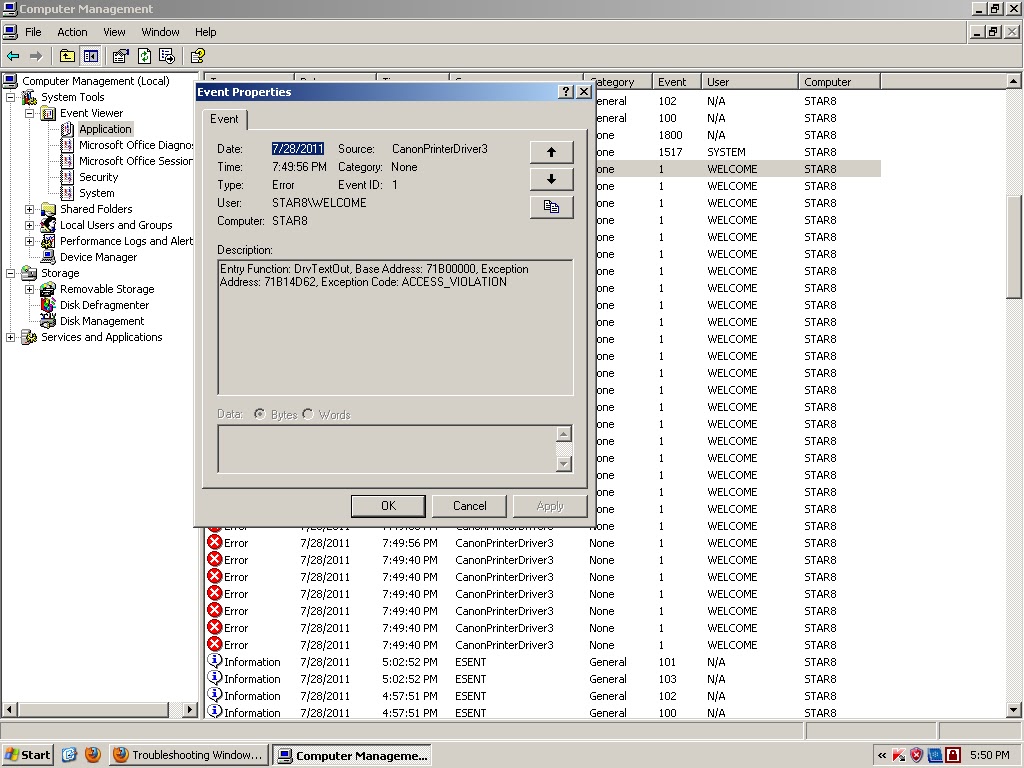
Exception code : ACCESS_VIOLATION Canon Printer

Error description:
Entry Function : Drv TextOut, Base Address :71B00000, Exception Address : 71B14D62,Exception code : ACCESS_VIOLATION.
Event id : 1.
Source : Canon Printer Driver3.
platform : windows xp.

Sharing hp laserjet printer failed event 19

Sharing printer failed + 1722,Printer HP LaserJet P1007 share name HPLaserJ.P1007.
Additional log :
Event id : 19.
Source : Print.
File name : LocalSpl.dll
Platform : windows xp
Solution :
Follow the below instructions to install your hp device after receiving an installation error.
We have detected that you were unable to successfully complete the installation for your HP device. All of the files that we attempted to install have been removed. Follow the procedures in this document to install your HP device after receiving an installation error.

Note
Please make sure you have turned off and restarted your PC before trying the steps outlined below.

Step 1: Run the Disk Cleanup utility
The software installation process uses certain system folders for preparing files for installation. Periodically, these folders need to be cleared. Prior to installing again, run the Disk Cleanup utility, which will help you:
·      Delete temporary Internet files
·      Delete downloaded program files
·      Empty the Recycle Bin
·      Delete files from the temporary folder
·      Delete files created by other Windows tools
·      Remove unused, optional Windows components
To use the Disk Cleanup utility:
1.     Click Start, click All Programs, click Accessories, click System Tools, and then click Disk Cleanup.
2.    After the Disk Cleanup utility analyzes the hard drive, a report with a list of options appears on the computer. Click the appropriate check boxes to remove unwanted files from the computer, and then click OK.
3.    Click Yes on the confirmation screen that appears on the computer. 

Step 2: Reinstall HP Software
Note
Before starting the installation process again, please confirm the following:
·      Unplug the USB cable from the device (if you are connecting to the printer via USB cable).
·      Make sure your PC has been rebooted at least once since the failed installation. 

Reinstall the HP software by re-inserting the CD that came with your device.
Please follow the onscreen instructions, and connect the USB cable only when prompted by the software. The illustration below shows a typical USB connection.

Note
If the USB cable is connected to a USB hub or a docking station for a laptop, it could cause the installation to fail. Try connecting the USB cable directly to the computer during the device installation (when prompted).
If you successfully installed your HP device, please skip to Step 6 and complete the brief feedback survey so that HP may continue to improve our products and processes for our customers.

Step 3: Temporarily Disable Startup Software
If you were again unable to successfully install your HP device, you may need to temporarily disable startup software. Windows allows many programs and processes to run immediately upon startup. These programs may be preventing you from installing the HP Software. These directions explain how to temporarily disable these programs and processes while installing the HP device. (Step 5 below will explain how to re-enable the startup software.)
1.     Open MSConfig as follows:
a.    Click the Start button.
b.    Click Run.
c.     Type msconfig in the run box, and then click OK.
2.    The System Configuration Utility dialog box appears. If the radio button next to Normal startup is currently selected, follow the steps under Normal Startup.  If the startup option is set to Selective, follow the steps under Selective Startup.
 
Normal Startup
Selective Startup
1.     Click the circle next to Selective Startup and uncheck the checkbox next to Load Startup Items.
2.    Click the Services tab. Place a checkmark on Hide All Microsoft Services.
3.    Click the Disable All button.

1. Disable the Startup Items
a.    Click the Startup tab.
b.    Make a list of items that are checked. You will need this list to set your computer startup items back to what it was before.
c.     Click the General tab.
d.    Uncheck the checkbox right next to Load Startup Items.
2. Disable the Services
a.    Click the Services tab.
b.    Place a checkmark on Hide all Microsoft Services.
c.     Make a list of items that are checked. You will need this list to set your computer service items back to what it was before.
d.    Click the Disable All button.

3.    Complete the MSConfig process
a.    Click the Apply button.
b.    Click the OK button and a new window will pop-up. Click the Restart button to continue.
c.     Upon restarting your PC you will get a System Configuration Utility window. Place a checkmark on the “Don’t show this message…” checkbox and click the OK button.
Note
After completing Step 4 below, don't forget to restore the startup software that you temporarily disabled. (Step 5 gives you the instructions for restoring the startup software.)  Without restoring your startup software, your PC may not function the way that you expect.

Step 4: Reinstall HP Software

Note
Before starting the installation process again, please confirm the following:
·      Unplug the USB cable from the device (if you are connecting to the printer via USB cable).
·      Make sure your PC has been rebooted at least once since the most-recent failed installation. 
Reinstall the HP software by re-inserting the CD that came with your device.
Please follow the onscreen instructions, and connect the USB cable only when prompted by the software. The illustration below shows a typical USB connection.
Step 5: Re-enable Startup Software
If you disabled startup software (in Step 3) to install the HP Software, you'll want to restore those applications and services at Startup. Without restoring your startup software, your PC may not function the way that you expect.
1.     Open MSConfig as follows:
a.    Click the Start button.
b.    Click Run.
c.     Type msconfig in the run box, and then click OK. The System Configuration Utility dialog box appears.
2.    If you followed Normal Startup in Step 3: Disable Startup Software above (or if you want to return to a Normal Startup), follow Normal Startup below. If you want to customize the programs that run at startup, follow Selective Startup to proceed.
 
Normal Startup
Selective Startup
Click the circle next to Normal Startup.

1.     Click the Startup tab.
2.    Place a checkmark on every item that is in your list of checked startup items for the startup tab from Step 3.
3.    Click the Services tab.
4.    Place a checkmark on Hide all Microsoft Services.
5.    Place a checkmark on every item that is in your list of checked startup items for the Services tab from Step 3.

3.    Complete the MSConfig process
a.    Click the Apply button.
b.    Click the OK button, and select Restart to restart your computer.

For Further Help
If you are still unable to install the HP software, please contact HP technical support.
Support options and availability vary by product, country/region, and language.

hp laserjet printer sharing failed 1722 with event id 19
Recommended :
fix print spooler failed error

Event 60055 windows setup installation

Windows setup encountered non-fatal errors during installation.Please check the setuperr.log found in your windows directory for more information.
Event id : 60055.
source : setup.
file name : syssetup.dll
product : microsoft windows operating system.
setuperr.log holds following report:
Error :
Setup detected that the system file named [C:\windows\system32\sfc_os.dll] is not signed properly by microsoft.This file could not be restored to the correct microsoft version.Use SFC( SYSTEM FILE CHECKER) utility to verify the integrity of the file.

Other system files that are not signed properly by the microsoft are,
[c:\windows\system32\drivers\tcpip.sys]
[c:\windows\system32\termsrv.dll]
[c:\windows\system32\uxtheme.dll]
windows setup encountered non-fata errors